 Add from Firefox Store
Add the Firefox extension
Open Firefox Add-ons, add the Aquila VPN extension, and approve the requested browser permissions.
Install the Firefox extension and manage VPN access right in the browser.
Requires one of the latest two Firefox versions on Windows, macOS, or Linux. Install the add-on from Firefox, approve its network permissions, and sign in to Aquila to use it.
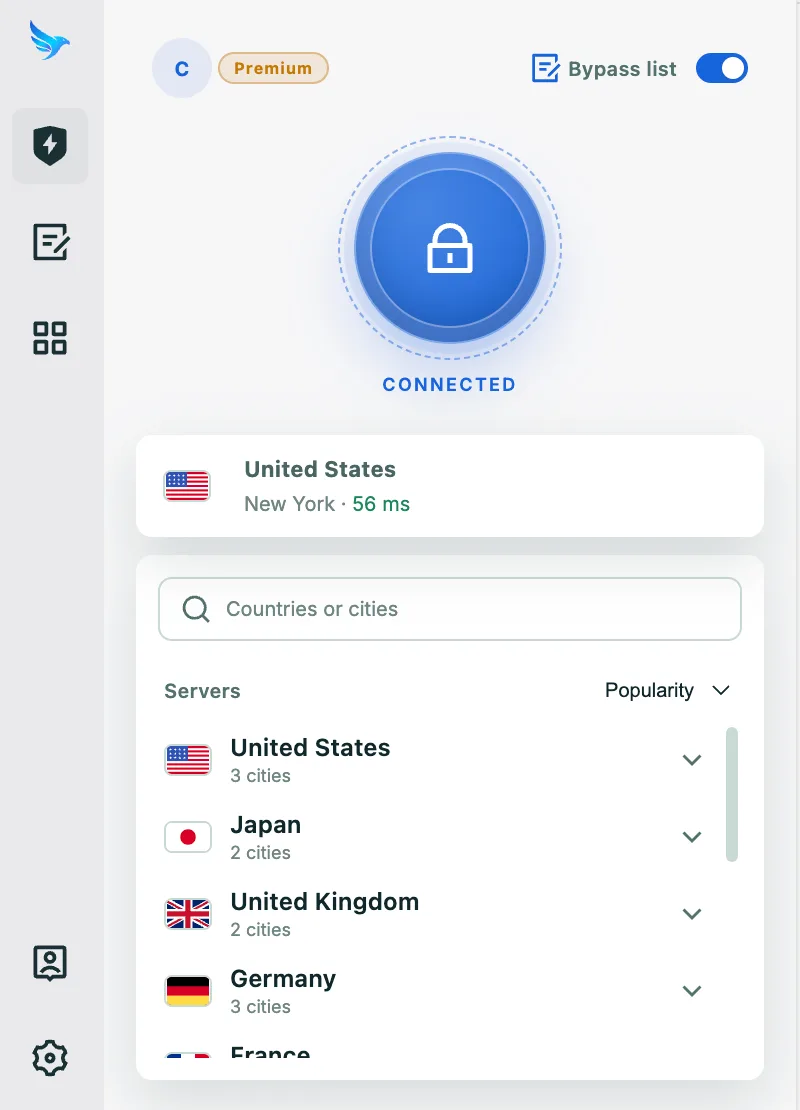
Open the app, choose your connection, and get protected in three simple steps.
Open Firefox Add-ons, add the Aquila VPN extension, and approve the requested browser permissions.
Open the extension and sign in with an Aquila account that has an active subscription or free trial.
Choose the location that best fits your needs, connect from the browser toolbar, and enjoy safer browsing.
Built to keep your connection private, secure, and easy to use on Firefox.

Automatically protect your connection when you join unfamiliar networks at cafés, hotels, airports, or other public places.

Helps prevent traffic from leaving your device unprotected if the VPN connection is interrupted unexpectedly.

Secure your internet traffic with strong encryption designed to keep your connection private on everyday networks.

Use modern VPN protocols selected for a practical balance of speed, stability, and protection on your platform.

Keep your browsing activity and real network details more private while you work, stream, travel, or browse online.

Help protect against malicious websites, phishing links, trackers, and other online threats while you browse and connect.
Answers to common questions about Aquila VPN on Firefox.
Open the official Firefox Add-ons listing, add the extension, and review the permissions requested by Firefox. Sign in after installation to start using it.
The extension is designed for supported Firefox browser traffic. Use the full Aquila client when you need protection for other applications or device-wide traffic.
Open the Aquila extension from the browser toolbar, select a location, and start the connection. Pin the extension for faster access.
Firefox does not enable extensions in private windows by default. If Aquila supports this workflow, open the extension settings and explicitly allow it to run in private windows; otherwise, use a normal browsing window.
Firefox lists the access an extension needs to work, such as controlling browser proxy settings or accessing supported websites. Review the request before installing and use the official Firefox Add-ons listing.