
How do I connect and change locations on Android?
Aquila VPN uses Android's VPN service to protect supported network traffic. Android displays a system permission prompt the first time the app starts a VPN connection.
Android menus differ by device maker and OS version. The app and system status indicators should both show an active VPN after you connect.
Steps
- Open Aquila VPN and sign in to your account.
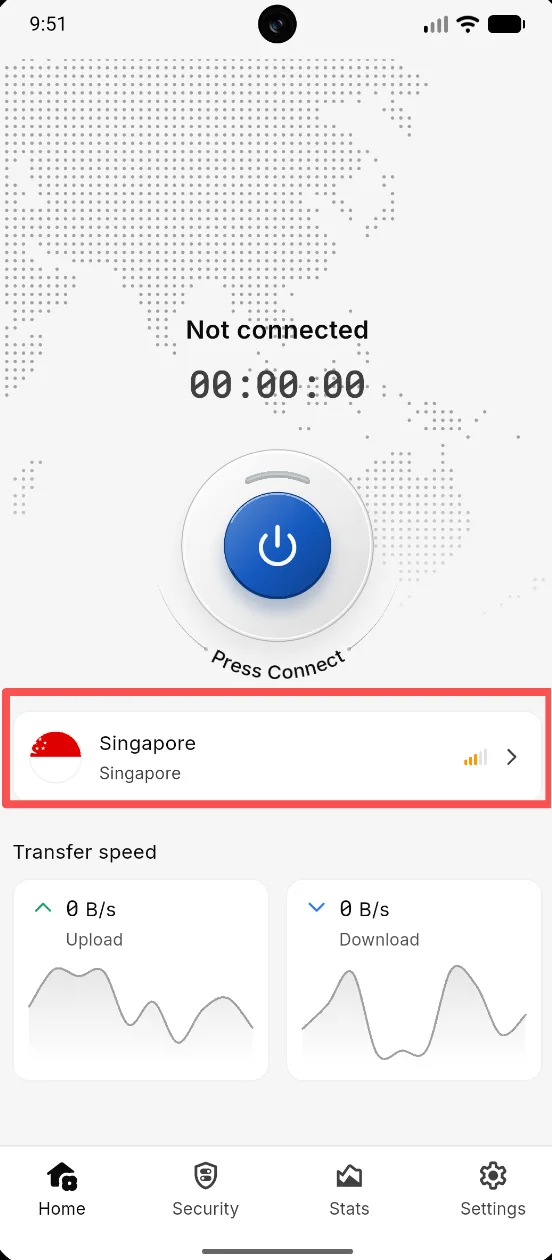
- On the Home screen, tap the current location card to open the server list.
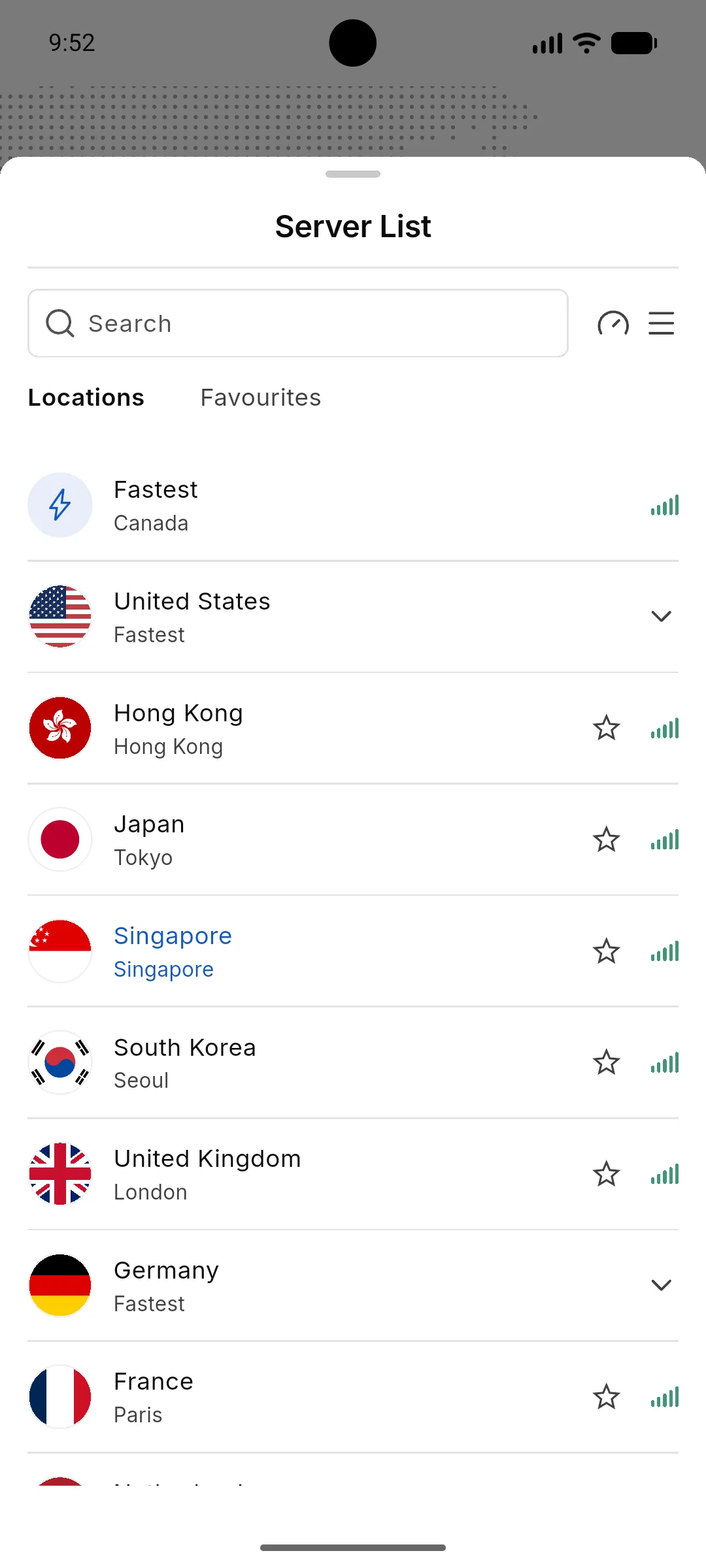
- Choose a country or city from the server list. Aquila VPN returns to Home with the selected location.
- Tap Connect. If Android displays a VPN connection request, approve it to allow Aquila VPN to connect.
- Wait for Aquila VPN to show Protected and check that Android displays its VPN indicator. To change locations, repeat steps 2 and 3; tap the connection button again to disconnect.