
How do I use Connection Shield on Android?
Connection Shield helps keep your Android device protected if Aquila VPN disconnects. It uses Android's Always-on VPN setting to reconnect Aquila VPN and Block connections without VPN to stop apps from accessing the internet outside the VPN.
When Block connections without VPN is enabled, Android blocks internet traffic whenever Aquila VPN is not connected. This can interrupt internet access if the VPN cannot reconnect, and may prevent access to local network devices. Turn the setting off in Android's VPN settings if you need to restore normal internet access while troubleshooting.
Steps
- Open Aquila VPN and select Security.
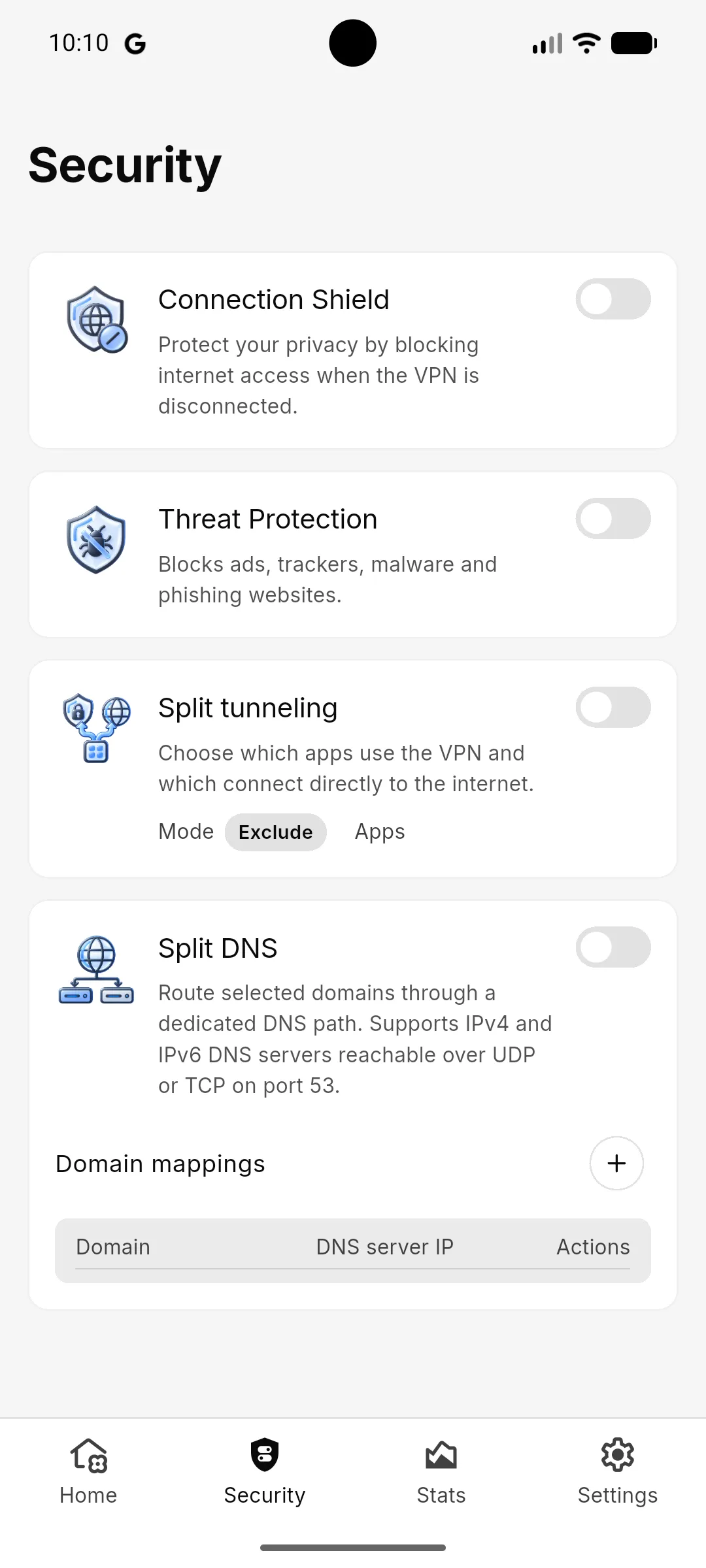
- Turn on Connection Shield and choose Settings when prompted. Android opens the VPN settings for Aquila VPN.
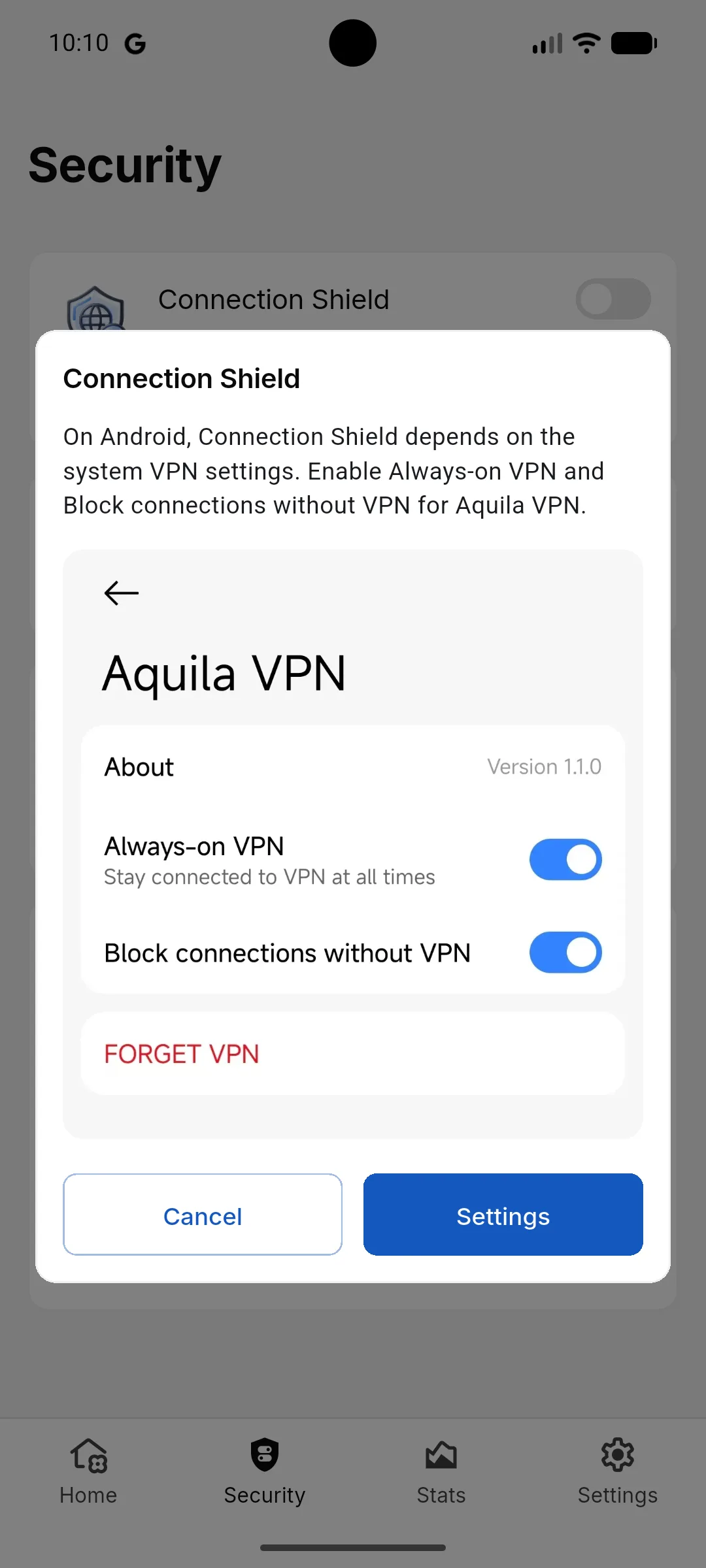
- Enable Always-on VPN and Block connections without VPN for Aquila VPN. The exact menu names may vary by Android version or device maker.
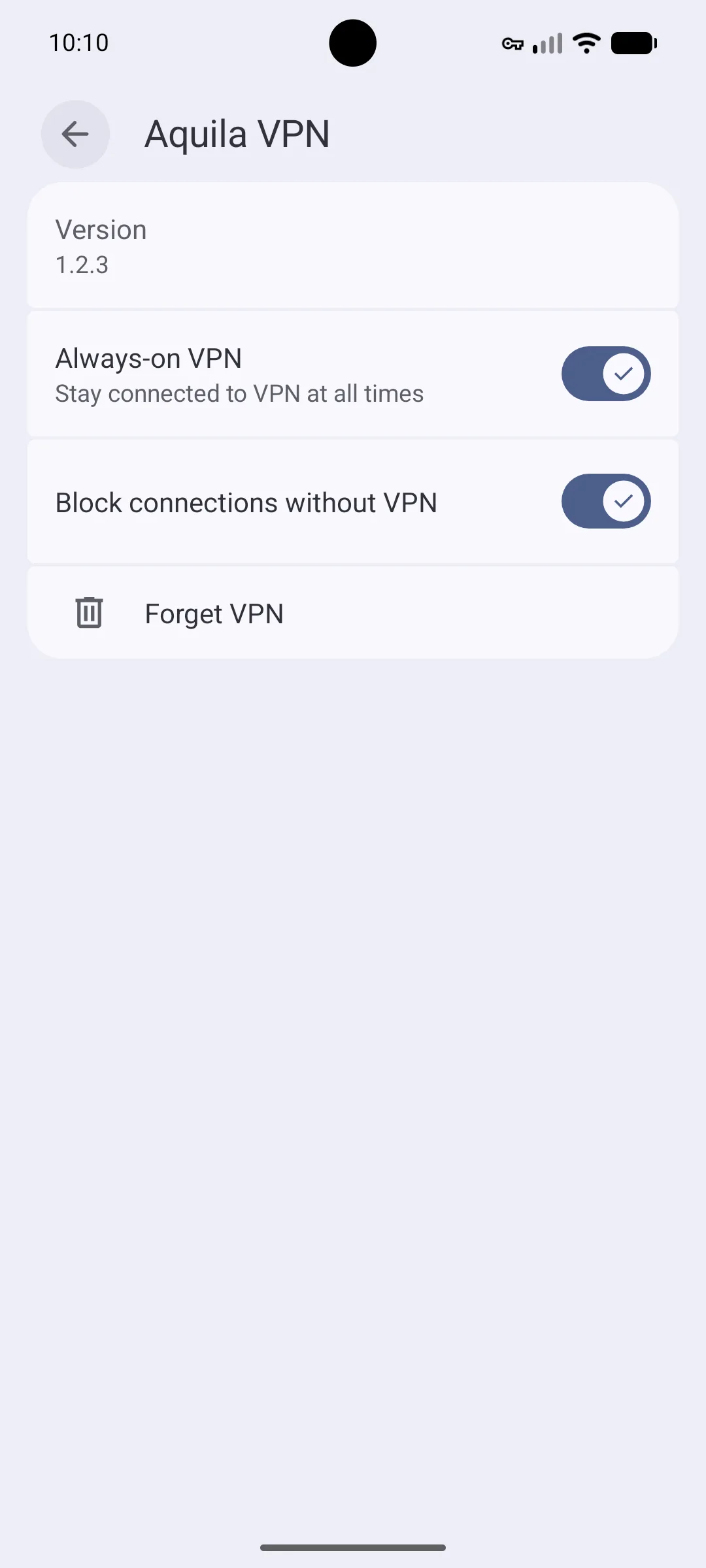
- Return to Aquila VPN and confirm Connection Shield is enabled. To turn it off, disable it in Security and adjust the Android VPN settings if needed.