How do I use Split Tunneling on Android?
Android Split Tunneling has two modes. In Exclude mode, selected apps connect directly to the internet while every other app uses Aquila VPN. For example, exclude a banking app that needs your regular network while keeping your browser and other apps protected by the VPN.
In Include mode, only the apps you select use Aquila VPN; all other apps connect directly. For example, include your browser when you only want web traffic to use the VPN and want other apps to keep using your regular connection. Apps that connect directly do not get Aquila VPN's protection.
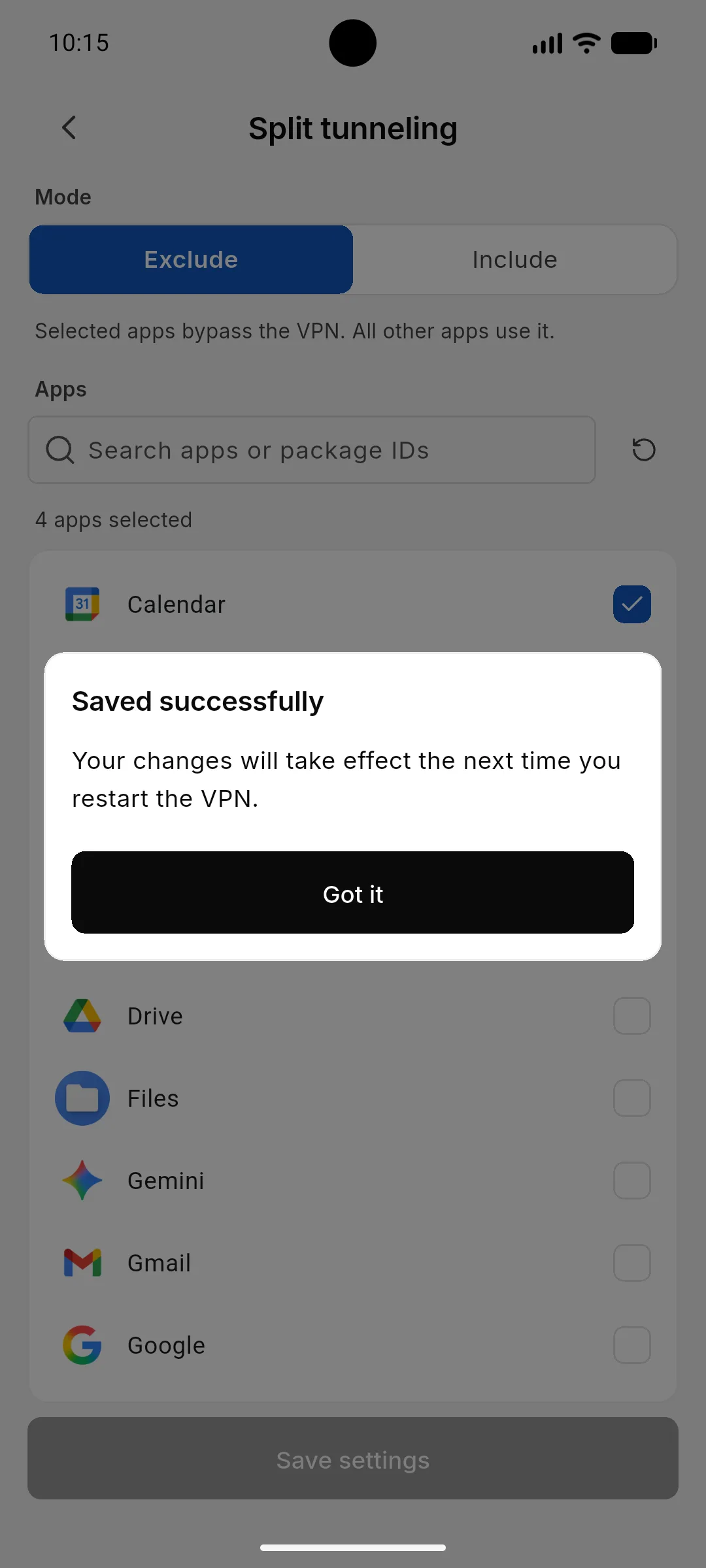
Every time you change the mode or selected apps, save the settings and restart the VPN connection. The updated Split Tunneling configuration does not take effect until you reconnect.
Steps
- Open Aquila VPN and select Security, then open the Split Tunneling card.
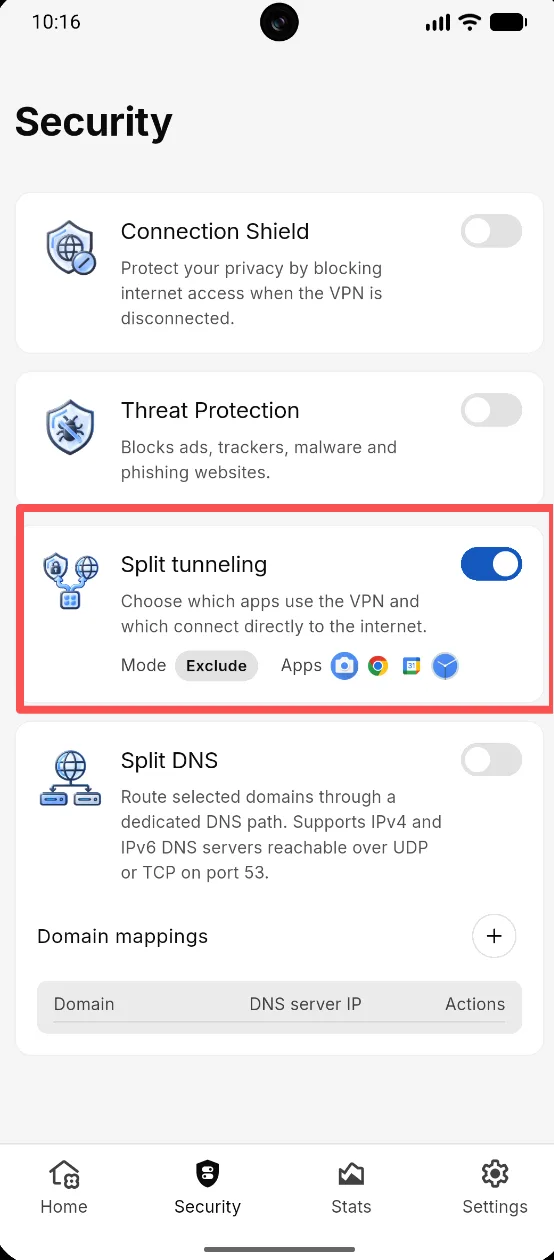
- Turn on Split Tunneling to open its settings.
- Choose Exclude or Include, then search for and select the apps for that mode. Include mode requires at least one selected app.
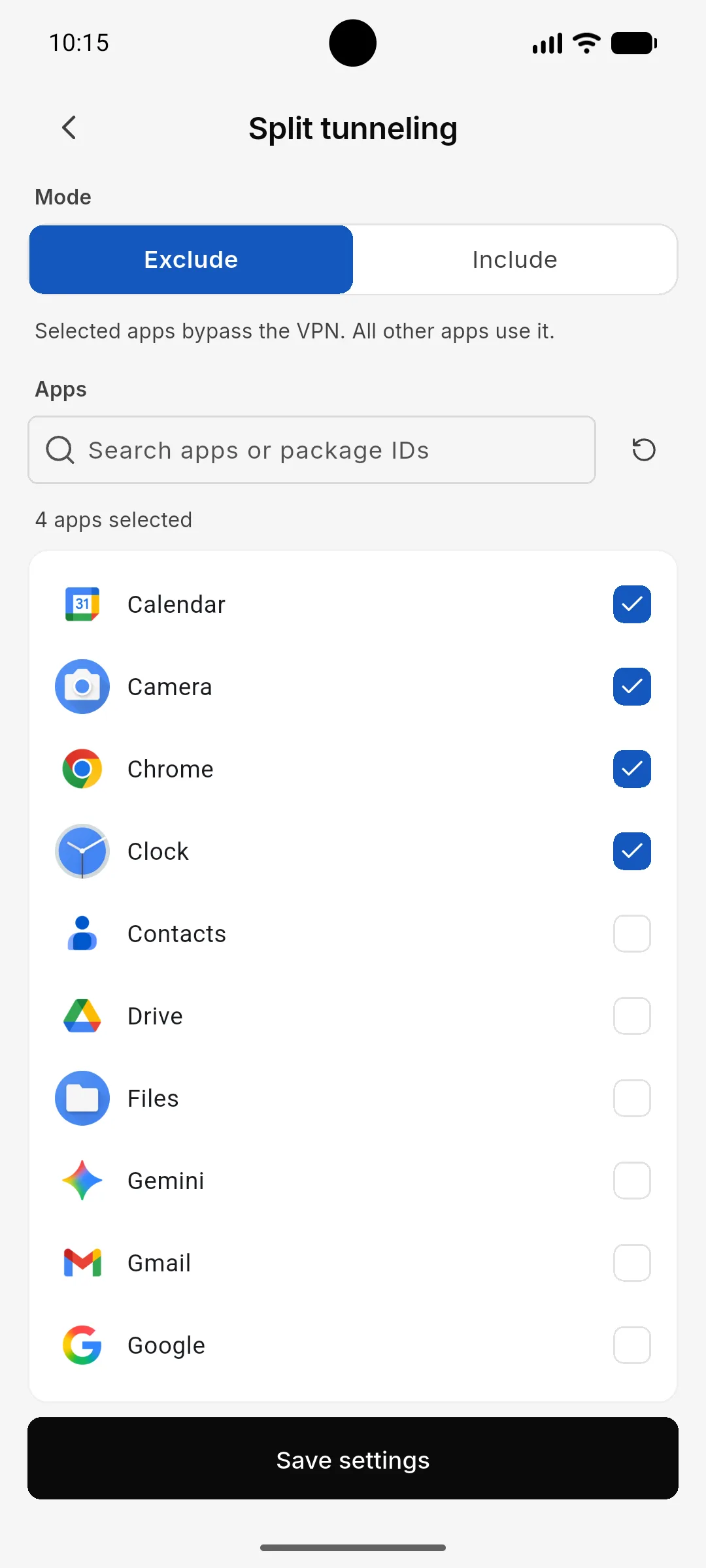
- Select Save settings, then disconnect and reconnect Aquila VPN to activate the new configuration. Repeat this after every change to the mode or selected apps.