
How do I use the Bypass List in my browser?
The Bypass List lets selected websites connect directly instead of using the Aquila VPN browser proxy. These connections use your normal internet connection and public IP address.
While the extension is connected and the Bypass List switch is on, matching destinations bypass the selected Aquila server. Other browser requests continue through the proxy. A page may load resources from several domains, so bypassing its main domain does not automatically bypass every resource it loads. A separate system VPN can still affect direct connections.
Add one entry at a time. Use example.com for that exact hostname, *.example.com for subdomains such as www.example.com, or an IP address such as 192.168.1.1. Add both example.com and *.example.com if you want the root domain and its subdomains to work consistently across browsers.
The input accepts domain names, a leading *. wildcard, IP addresses, and localhost. It removes an initial http:// or https:// and a trailing slash. Page paths, query strings, domain port suffixes, CIDR ranges, arbitrary wildcard patterns, and comma-separated lists are not supported by this input.
Chrome and Edge apply the browser proxy bypass rules. Firefox uses Aquila’s per-request hostname matching: a plain entry matches exactly, while *.example.com matches both example.com and its subdomains. The official references below describe broader browser APIs and policies; their full syntax is not accepted by Aquila’s input.
Steps
- Open the Aquila VPN extension in Chrome, Edge, or Firefox and select Bypass List.
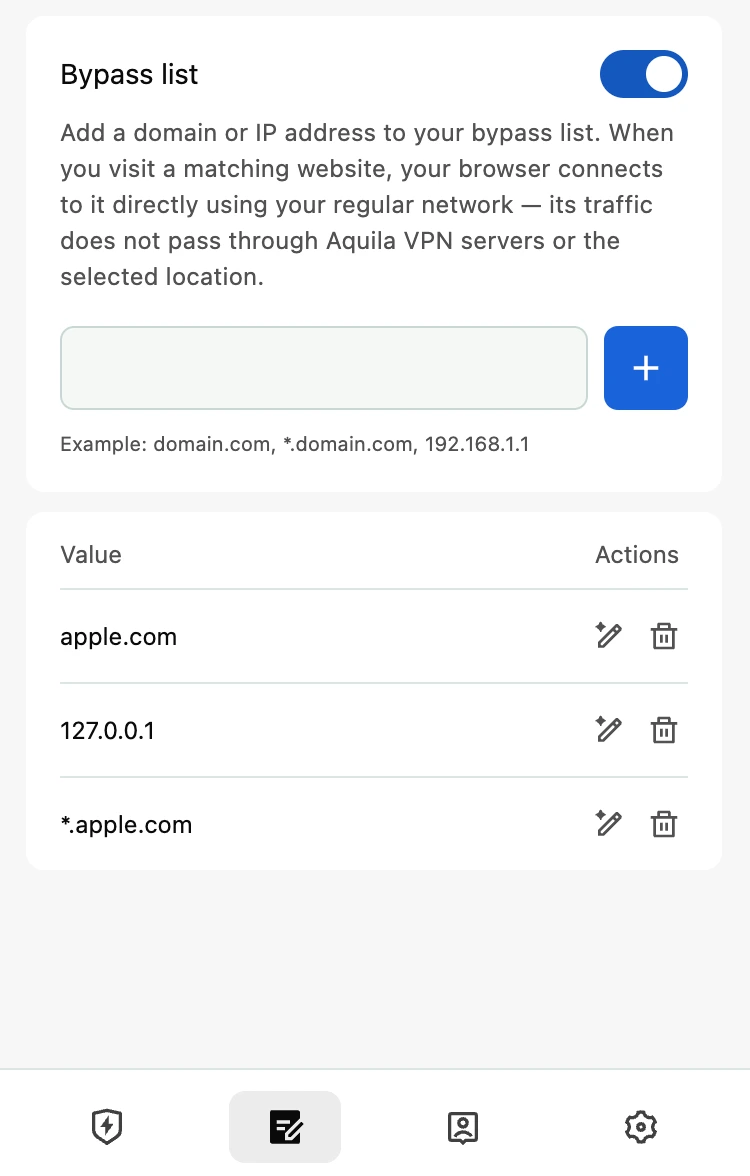
- Turn on the Bypass List switch.
- Enter a domain such as example.com, then select the + button. Use *.example.com for subdomains. Enter a hostname or IP address without a page path or query string.
- Use the pencil button to move an entry into the input field, update it, then select + to add it again. Use the trash button to remove an entry.
- Turn off the Bypass List switch to pause your saved rules. Turn it on again to apply them.