
How do I connect and change locations on macOS?
Aquila VPN for macOS uses an Apple system VPN configuration to route traffic through the selected location. macOS may ask you to approve this configuration the first time you connect.
Keep Aquila VPN updated through its official release channel. System prompts can look different across macOS versions.
Steps
- Install or update Aquila VPN from the official macOS download, then open the app and sign in.
- Choose a location from the server list or use the recommended location.
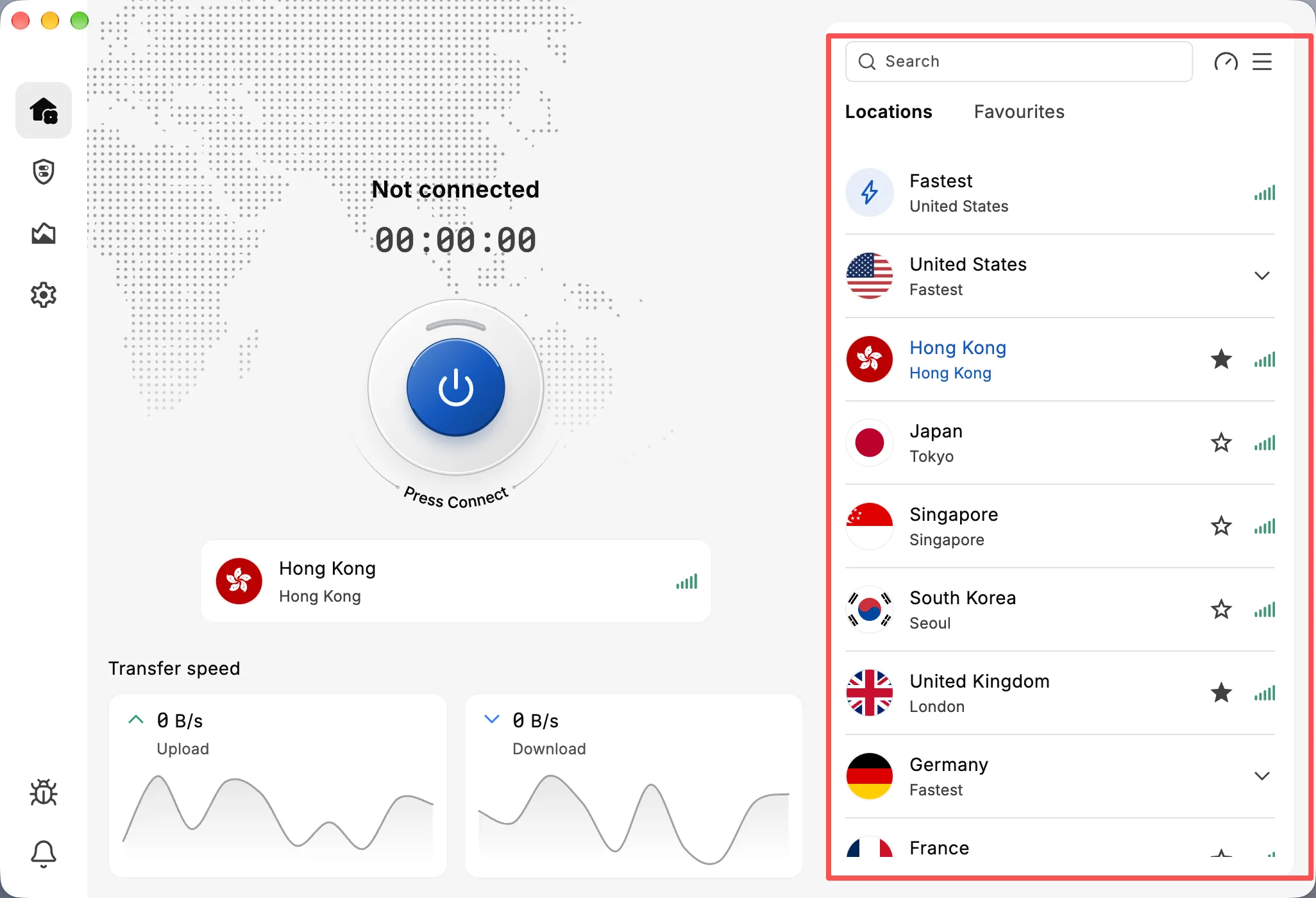
- Select Connect. If macOS asks to add a VPN configuration or allow a network extension, review the prompt and approve it for Aquila VPN.
- Wait for the app to show Protected before using the connection.
- To change locations, select another server in Aquila VPN and connect again.